20 Hand Drawn Photo and Clipping Masks: A Creative Toolkit for Unique Design
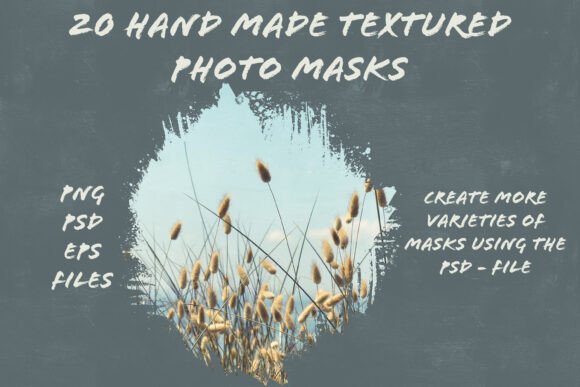
Designers and creators are always on the lookout for tools that bring originality and texture to their work. The 20 Hand Drawn Photo and Clipping Masks collection offers just that—a set of hand-crafted, versatile masks created using real brushes, watercolors, and acrylic paints. These masks, enhanced with custom Photoshop brushes, allow for endless creative combinations, especially when used with the included layered PSD file. Whether you're working on product mockups, digital art, or social media visuals, this toolkit can elevate your design process.
Understanding the Value of Hand-Crafted Masks
What sets 20 Hand Drawn Photo and Clipping Masks apart is the organic, tactile quality of each mask. Unlike generic digital shapes, these masks carry the subtle imperfections and textures of traditional media. This gives your work a more authentic and human feel—ideal for branding, packaging, or editorial design where uniqueness matters.
The collection includes 20 PNG files with transparent backgrounds (4000px x 4000px), 20 vector EPS files (1000px x 1000px), and a layered Photoshop file with preset masks and a color background. This flexibility ensures compatibility across design workflows and software versions.
Common Mistakes When Using These Masks
Despite the quality and potential of this collection, there are common pitfalls users may encounter when applying these masks in their projects. Recognizing and avoiding these mistakes can save time, improve results, and enhance the overall impact of your design work.
Mistake 1: Overlooking File Compatibility
Some designers jump into using the masks without checking if their software supports the file formats included. While the PSD file is convenient for Photoshop users, others using alternative design tools may find the EPS and PNG files more useful. Always verify your software’s compatibility before diving into a project.
Better approach: Test the masks in your preferred software before committing to a design direction. If you're using Illustrator or Affinity Designer, work with the vector EPS files for scalability without quality loss.
Mistake 2: Using Masks Without Adjusting for Composition
Each mask has its own character and density. Applying them directly without considering your image’s composition can lead to cluttered or unbalanced visuals. For instance, using a heavily textured mask over a detailed photograph might obscure important elements.
Better approach: Start with a light overlay and gradually build up the effect. Adjust the mask’s opacity and blending mode to complement rather than overpower your base image. Use multiple masks together, like the creator did with masks 1, 13, and 14 on the cover image, to create depth without chaos.
Mistake 3: Ignoring the Importance of Resolution
The PNG files are high resolution (4000x4000px), but not all projects require that level of detail. Using oversized files unnecessarily can slow down your workflow and increase file size, especially in web or social media design.
Better approach: Resize the mask to match your project’s output resolution. For web use, scale down to 1920px or less and save in a compressed format. This maintains quality while keeping file sizes manageable.
Mistake 4: Assuming All Masks Are Interchangeable
While the collection is cohesive, each mask has a unique texture and edge style. Assuming they can be used interchangeably without affecting the design can lead to inconsistent results. Some masks work better for vintage aesthetics, while others suit modern or abstract layouts.
Better approach: Preview each mask individually and categorize them by style or mood. This helps you select the right one for your project without trial and error. Use the PSD file to test combinations quickly before applying them to your final image.
What to Check Before Using These Masks
Before incorporating 20 Hand Drawn Photo and Clipping Masks into your design, consider the following to ensure smooth integration and professional results:
- Project Purpose: Determine if the organic, textured style aligns with your brand or visual goal. These masks are ideal for artistic or handcrafted themes but may not suit minimalist or ultra-clean designs.
- File Requirements: Confirm whether you need vector or raster files. EPS files are best for scalable illustrations, while PNGs are better for layered composites.
- Layer Complexity: The layered PSD file is a powerful tool, but if you're new to Photoshop, take time to understand how clipping masks and layer styles work before diving in.
- Usage Rights: Always check the licensing agreement. Most digital asset platforms allow for commercial use, but it’s important to confirm that the masks can be used in your specific project type, such as merchandise or product packaging.
How to Get the Most Out of These Masks
To truly benefit from this collection, approach it with intention and experimentation. Here are some practical tips:
- Combine Masks for Unique Effects: Layer two or three masks together to create complex textures. Try blending modes like Multiply, Overlay, or Soft Light to see how they interact with your image.
- Customize with Color: The included color background in the PSD file makes it easy to change the tone of your masked image. Use this to match your brand palette or evoke specific moods.
- Apply to Real-World Products: These masks are perfect for apparel design, stickers, magnets, and other consumer products. Use them to add artistic flair to fabric prints or packaging labels.
- Save Custom Presets: Once you’ve created a unique mask combination, save it as a preset or action in Photoshop for future use. This speeds up your workflow and ensures consistency across projects.
Final Thoughts
The 20 Hand Drawn Photo and Clipping Masks collection is more than just a set of digital assets—it's a toolkit for creative expression. By understanding how to use these masks effectively and avoiding common missteps, you can unlock a new level of depth and authenticity in your designs. Whether you're a seasoned professional or a beginner exploring digital art, this collection offers flexibility, quality, and inspiration for your next project.